

Sublimation templates and layouts, without the faff
Pick the blanks you're printing, drop your designs on, and Studio lays the whole lot out for you at the right size, mirrored, on as little paper as it can. It's free for 30 days every time you order from us.
Free to try. Order anything from us and printing is free for the next 30 days.

It fits more on every sheet
This is the bit we're proudest of. Every time you add something, Studio tries 30 different ways of laying out your sheet and keeps the one that uses the fewest sheets, then the least paper on the last one. It'll turn pieces on their side to squeeze them in, and on a roll it only uses the length you need.
Have a go. Add a few blanks and see how it compares with lining them up in rows.
The Studio side runs the same layout code as the app, with 2 mm bleed, a 3 mm gap and 5 mm margins. The other side lines pieces up in the order you add them without turning any, which is how most of us do it by hand. Click a piece to take it off.
What you told us
We sent round a survey and 162 of you got back to us. These are the five things that trip people up most when they print, with the share of you who said so, and what Studio does about each one.
Getting the size right for each blank
The blanks we sell are already in Studio at their real size, camera hole and all. You pick the model and that's the size sorted.
Fitting lots of designs on one sheet
That's the layout you just played with. You don't drag anything into place unless you want to.
Getting the colours right
Studio won't touch your colours. It prints exactly what you upload. If your colours are coming out wrong, the printer settings and profiles in our Colour Hub fix most of it.
Forgetting to mirror
Mirroring is on for every print, so you can't forget. Any order notes under your products still print the right way round.
Blurry prints
Studio checks every design at the size it'll print and warns you if it's under 150 dpi, before you've wasted a sheet on it.
How it works
Add your blanks
Search for the phone model or pick from the list. Anything you've bought from us before is waiting at the top.
Add your designs
Upload your images and click them onto each blank. If it's the same design on everything, one click puts it on all of them.
Print it
Hit print, or download a PDF if you print from a different computer. That's it.
Everything else it does
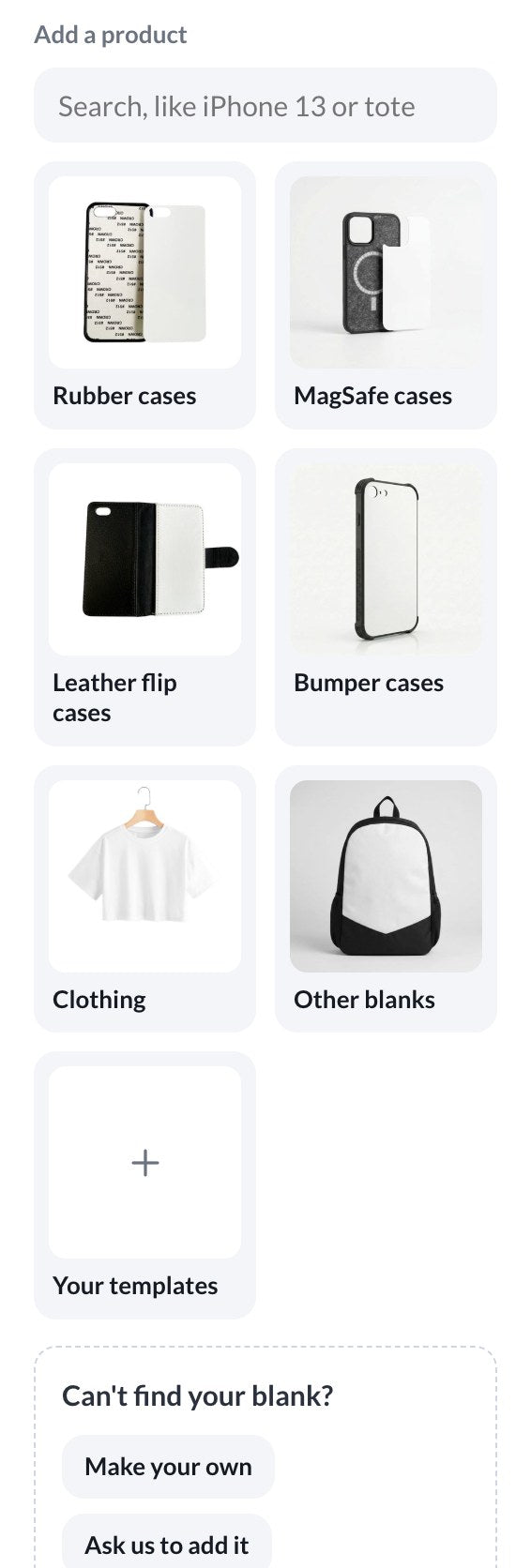
Over 450 of our blanks, ready to go
Our rubber, MagSafe, leather flip and bumper phone cases are all in there, along with clothing and other blanks, each at the right size with the right bleed. The ones you've ordered before come up first, so your regulars are right at the top.
If you'd still rather set templates up yourself, our iPhone 16 case template guide shows you how.

A4, A3 or a roll
Choose your paper and set your own margins and gap. When one page is full, Studio starts another underneath. Rolls go from 210 mm up to 610 mm wide, and it tells you exactly how much roll the job will use.
It works with whatever sublimation paper you're using.

Bleed and mirroring taken care of
Bleed goes on every product and you can see the cut line on screen. Before anything prints, the print check runs through your paper, margins, mirroring and size, so you're not finding out after it's pressed.
The PDF prints at the real size, so a phone case comes out the size of a phone case.
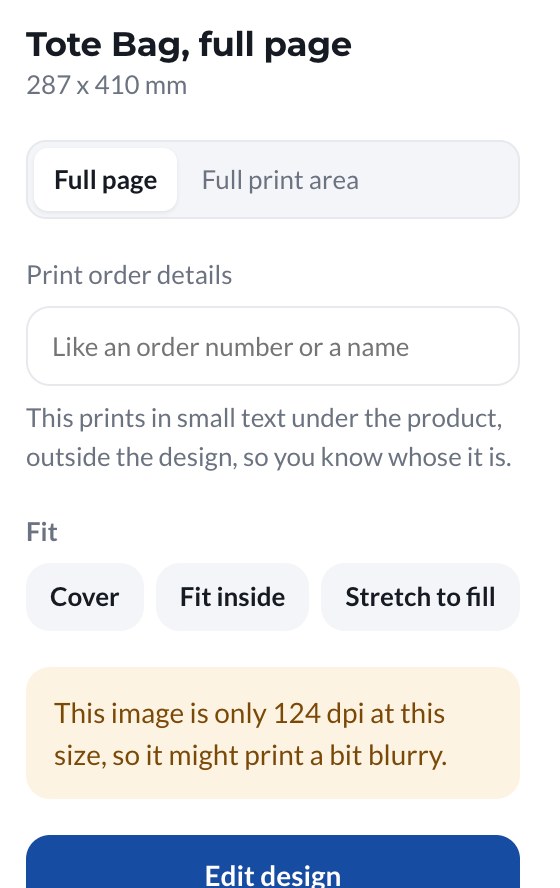
A heads-up on blurry images
If a design is going to print fuzzy, Studio tells you on the design, on the product and again at the print check. Anything under 150 dpi gets flagged, so you can swap in a better file first.
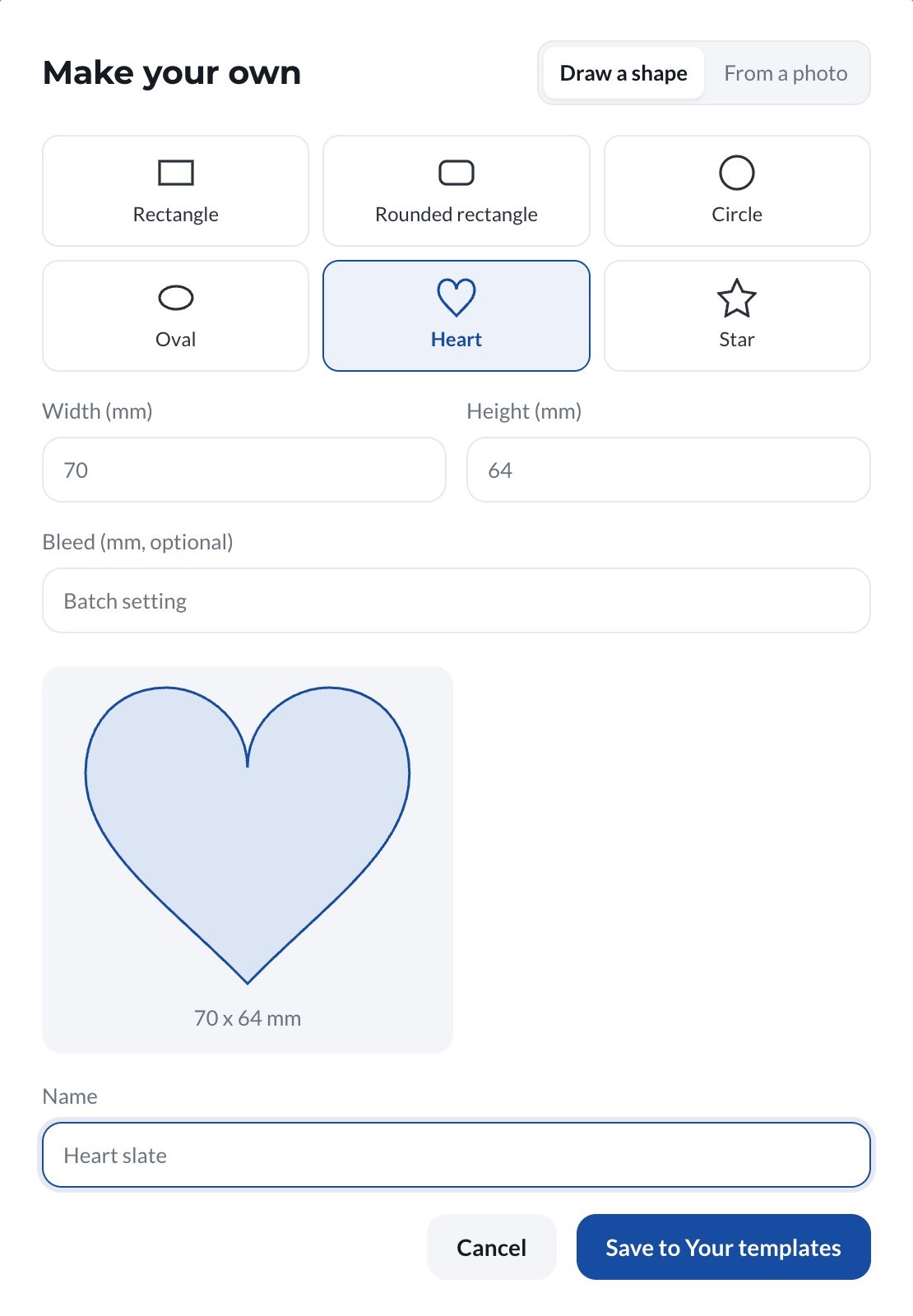
Blank not on the list? Make your own
Draw it at the size you need: rectangle, circle, heart, star and a few more. Or take a photo of the blank on a sheet of A4 and Studio traces round it for you. Your photo isn't uploaded anywhere.
You can also tell us which blank you're after from inside Studio.

Pick up where you left off
Every job saves as a batch. Reopen last week's orders, copy a batch for a repeat order, and add a name or order number under each product so you know whose is whose. Print one page or download the lot as a PDF.
What it costs
Using Studio and saving your work costs nothing. You only need access when you want to print.
- Any order counts, big or small.
- Every order starts your 30 days again.
- No card details needed.
- Cancel whenever you like.
- Order from us and your next payment moves back 30 days.
- Your batches stay saved if you cancel.
Questions
How do I log in?
Pop in the email address you order from us with and we'll email you a code. There's no password to remember. Our getting started guide walks you through your first batch.
How much is it?
Free for 30 days after every order you place with us. Between orders it's £5 a month and you can cancel whenever you like. There's more on how free access works in our guides.
Do I have to buy something first?
No. Anyone can log in, set up batches and save them. You just need an order in the last 30 days, or the monthly plan, when you want to print.
What happens when my 30 days are up?
Nothing gets deleted. You can still open, change and save everything. Printing switches off until you order again or go monthly.
I pay monthly. Do I still get charged if I place an order?
Not while your order's covering you. We push your next payment back to 30 days after the order.
My blank isn't in there. What now?
Draw it yourself with Make your own, trace it from a photo, or use Ask us to add it in Studio and tell us what you need.
Will it work with my printer?
If your printer can print a PDF, yes. When the print box opens, pick Actual size or 100% rather than Fit to page, otherwise everything comes out smaller. Our printing guide has more.
What paper sizes can I use?
A4, A3, and rolls 210, 297, 330, 432 and 610 mm wide. You can change the margins, the gap between pieces and the bleed too.
Where can I get help?
Our Studio guides go through everything step by step, or send us feedback from inside Studio.
Give it a go on your next batch
It's free to try. Log in with the email you order from us with, and if you've ordered in the last 30 days, printing's free too.